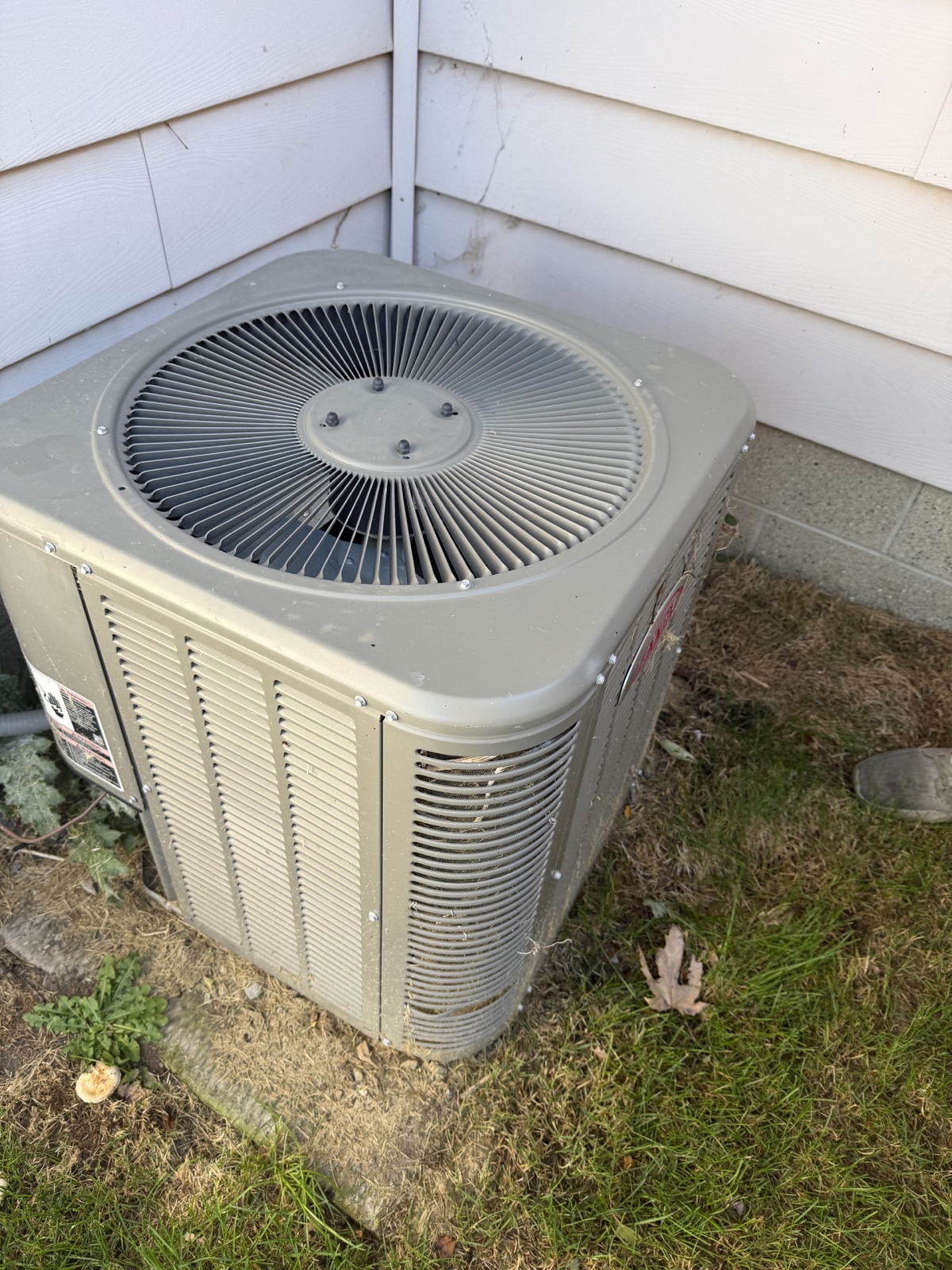
Start with the whole side of the house
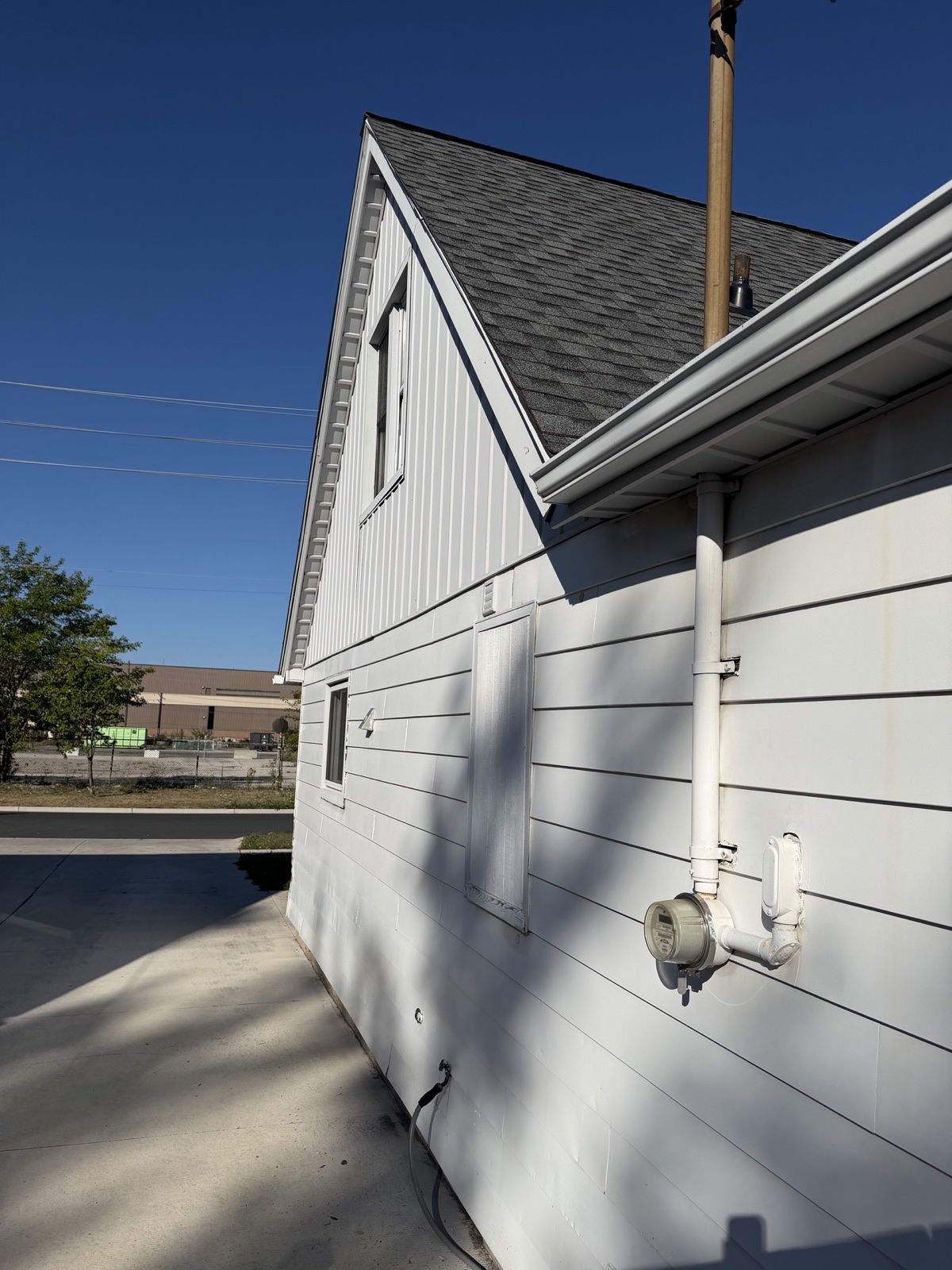
From an accessible, stable spot on the ground, take a wide photo that includes the roofline, gutter, siding and a location marker such as a window or corner. Note which side of the home you photographed. GAF’s homeowner guidance describes viewing a roof from the ground with binoculars as an option for observing it.
In the field photo above, the gutter helps connect the roof view to the wall below. It also blocks the view of part of the roof edge. Keep that limit in your notes.
Add detail without losing the location
- Take a closer view of the feature you want to ask about, keeping a window, corner or gutter joint in the frame if possible.
- Check the photo before leaving. If the feature is blurred or in deep shadow, try a second view from another accessible spot on the ground.
- For siding within easy view, capture the area and its surrounding panels or trim. Describe what you can see, such as a gap or mark, and record its location.
- Keep the wide original even if you crop a copy for a question. A crop can hide the context the inspector needs.
Write down what the view leaves out
A ground-level photo may leave the far roof slope, a junction behind a mast, or a gutter’s interior out of view. Record those areas as unseen. The Office of Consumer Affairs explains that an inspection is limited by what the inspector can see and access, including when a roof is covered by snow.
Turn that limit into a question such as “The near gutter hides the roof edge on this side. How will that area be assessed, and will any access limits be recorded in the report?” Let the inspector determine the appropriate access and method.
Keep the photo beside the question in HomeScanr
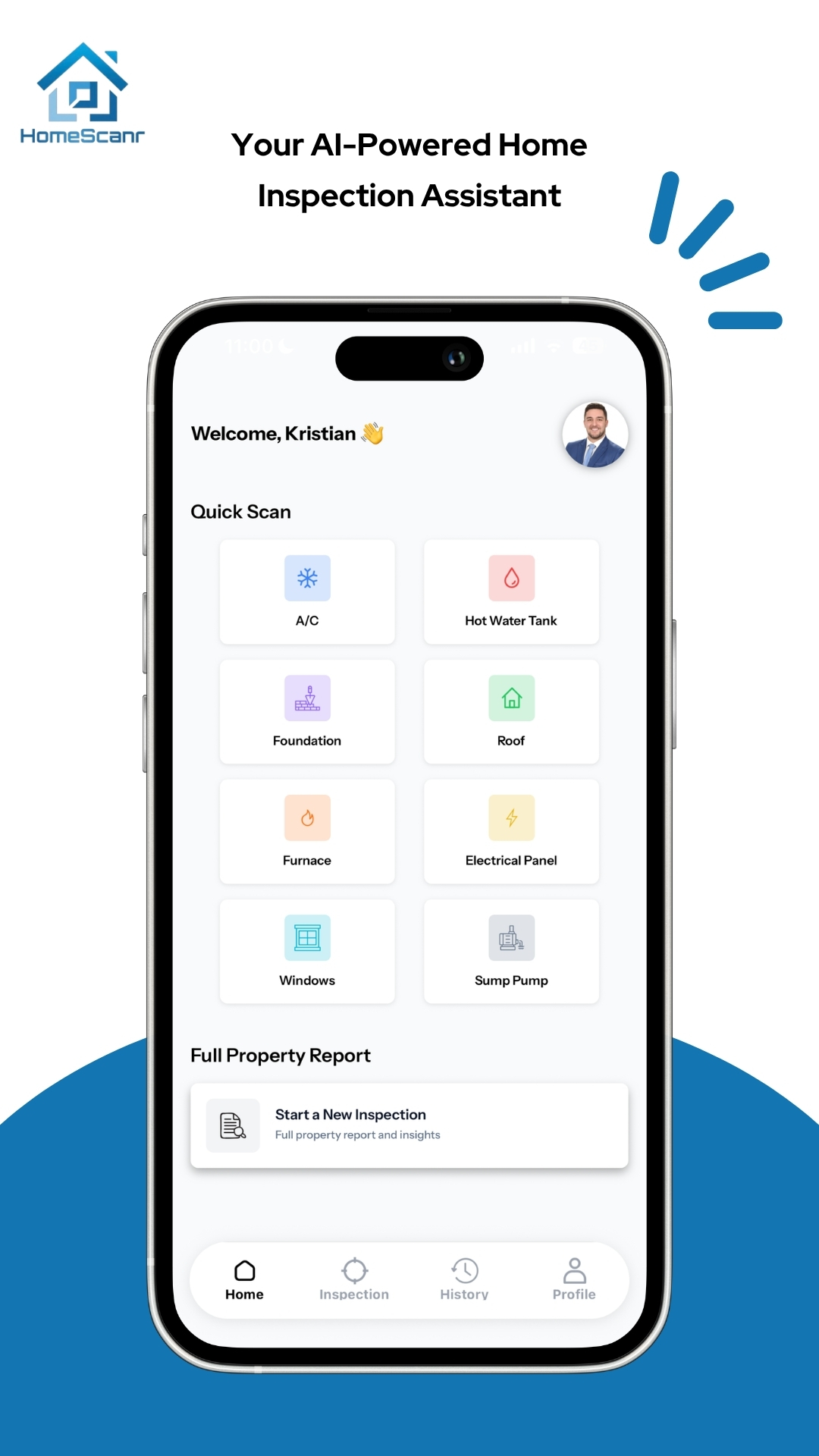
The HomeScanr dashboard includes a Roof Quick Scan category and a Full Property Report option. If you use a scan for a visible feature, ask about that feature and keep your original context photo available when reviewing the response. Bring any question the photo leaves open to the professional inspection.
Sources & further reading
- GAF homeowner guidance on viewing a roof from the ground ↗Checked Nov 11, 2026
- Office of Consumer Affairs guidance on home inspections and access limits ↗Checked Nov 11, 2026
- HomeScanr product description on the App Store ↗Checked Nov 11, 2026
Prepared with AI assistance using the linked sources, an owner-supplied field photo and an existing HomeScanr product screenshot. The example question is illustrative. No condition assessment of the photographed home was performed.